
AdCue Documentation
Dashboard Overview
Your home base for managing ads
Learn what every part of the AdCue dashboard does. This is your home base - the first screen you see after signing in.
What is the Dashboard?
The dashboard is the first thing you see when you sign in to AdCue. Like the home screen on your phone, it shows the most important information at a glance.
From here you can see how your ads are doing, what needs fixing, and what the AI suggests you change. You do not need to click anywhere else to get the big picture.
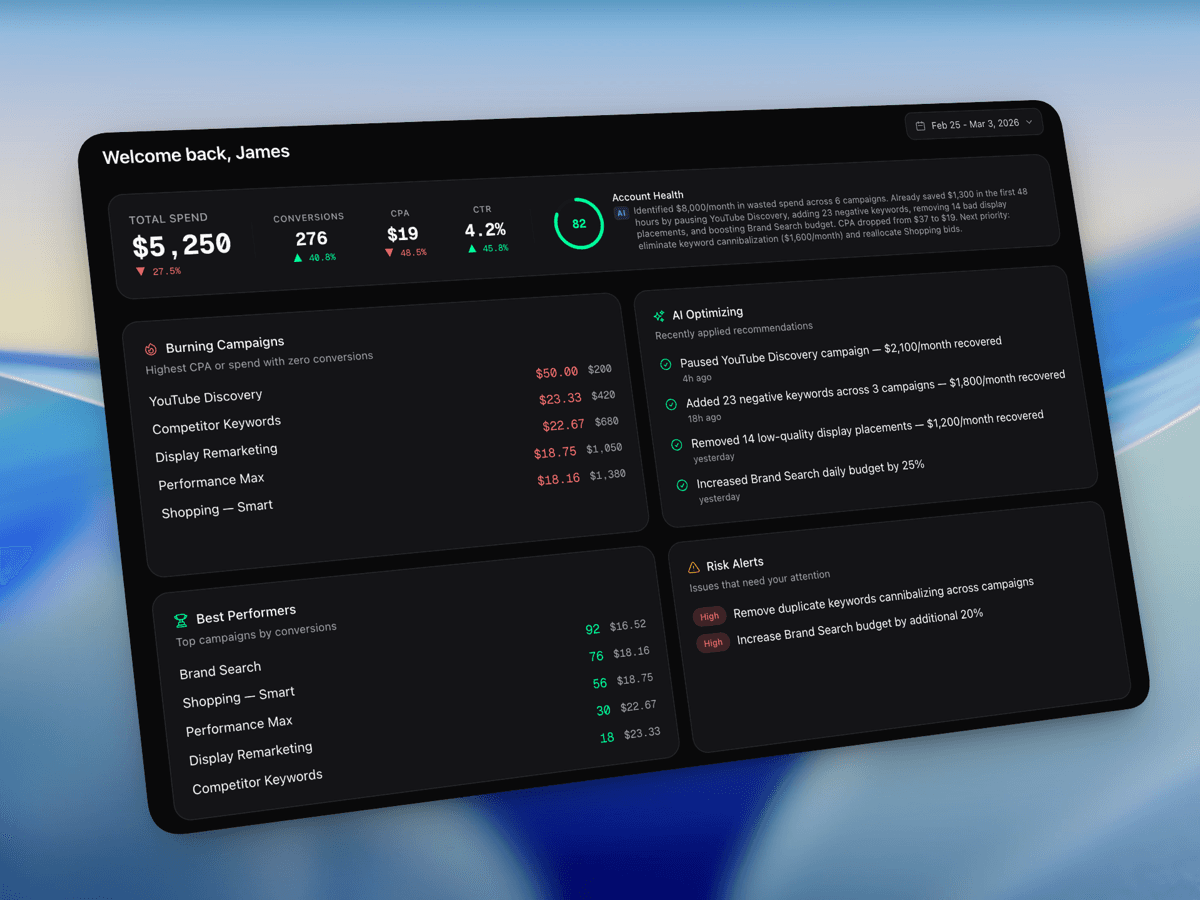
Top Banner - Your Key Numbers
At the top of the dashboard, a row of numbers shows the most important ad metrics:
| Number | What it means |
|---|---|
| Total Spend | The total amount spent during the selected time period. |
| Conversions | How many people completed your goal, such as a purchase or signup. |
| CPA | Cost Per Action - the average cost of one conversion. |
| CTR | Click-Through Rate - the percentage of viewers who clicked. |
| Health Score | A score from 0 to 100 that summarizes account health. |
The Health Score appears as a colored circle. Green means ads are doing well, yellow means there is room to improve, and red means you should act soon.
The Four Summary Cards
Below the top banner, four cards highlight different parts of your ad account:
Burning Campaigns
Campaigns spending money without good results. Review these "burning" campaigns first.
AI Optimizing
Changes the AI is currently working on or has recently suggested.
Best Performers
Winning campaigns that are producing strong results for their spend.
Risk Alerts
Issues that need attention soon, such as budget pressure or wasted keyword spend.
Charts - See Trends Over Time
Dashboard charts show how spending and results change over days, weeks, or months. Hover over a point to see exact numbers.
Charts help reveal patterns, such as stronger weekday performance or lower costs after a recent optimization.
Optimization Feed - AI Suggestions
The Optimization Feed lists AI suggestions. The most important items appear first, and each explains one action that could improve your ads.
Open a suggestion to learn more, or click "Apply" to let AdCue make the change. The AI Recommendations page explains the full workflow.
Getting Around the Dashboard
The left sidebar links to Campaign List, Monitor View, AI Chat, and other pages. Collapse it with the arrow icon when you want more room.